

Step 1Documentation Index
Fetch the complete documentation index at: https://docs.scalev.com/llms.txt
Use this file to discover all available pages before exploring further.
- Open the Gmail app on your phone. - Then click on any email from Scalev — the sender’s name is Army Scalev.
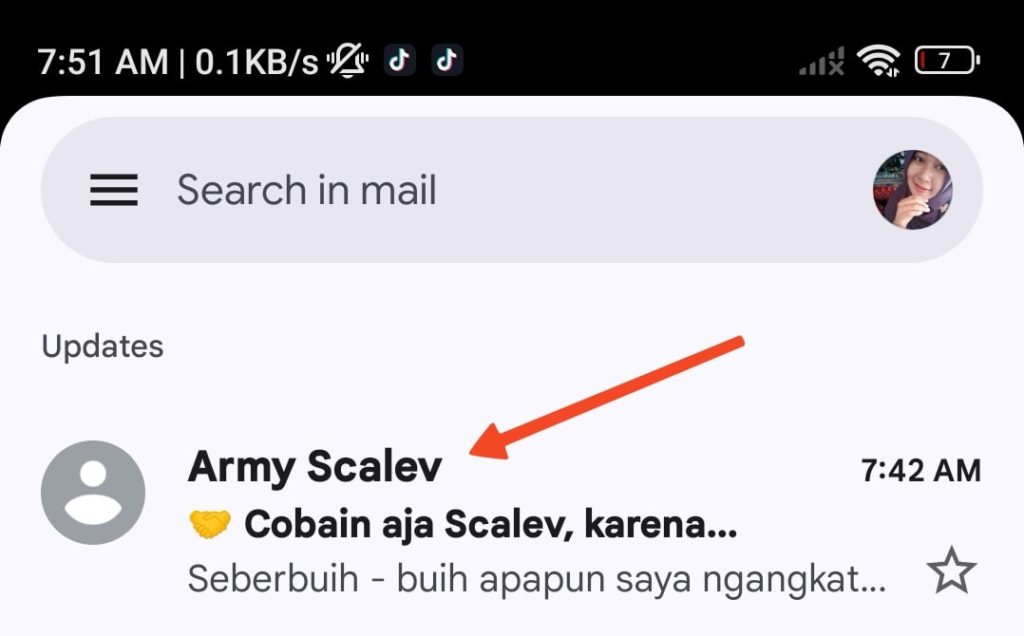
Step 2
- Click the Army Scalev email profile picture (gray photo/Scalev logo).
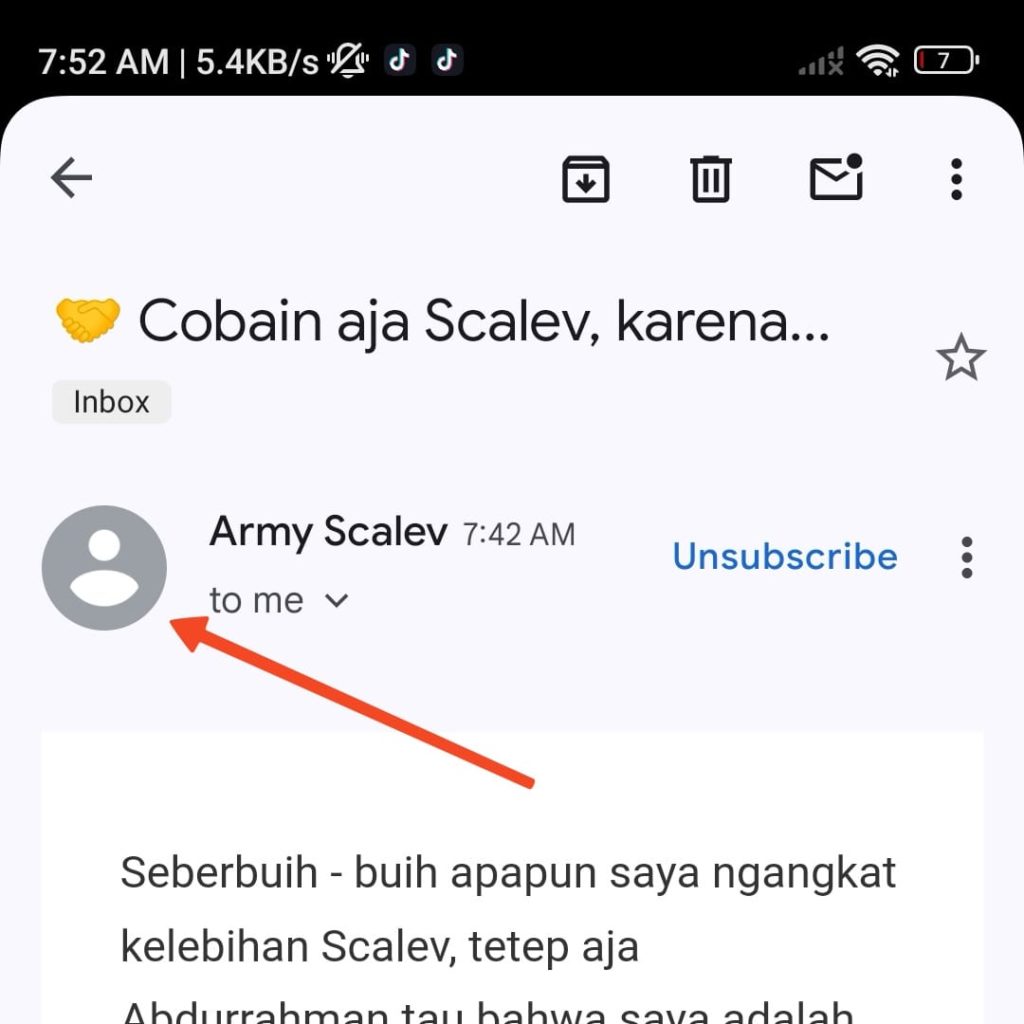 - A pop-up will appear from the bottom. Then click the icon pointed to by the red arrow.

Step 3 (last)
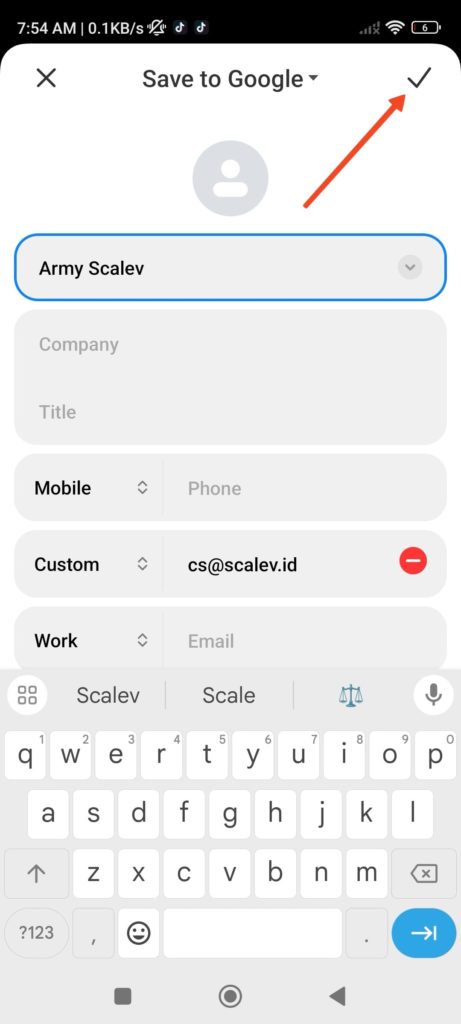
- Click the checkmark to save the Army Scalev contact.
- If you have more than 1 active Gmail account, first select the one that receives emails from Scalev.
 - Then “Contact Saved” will appear.
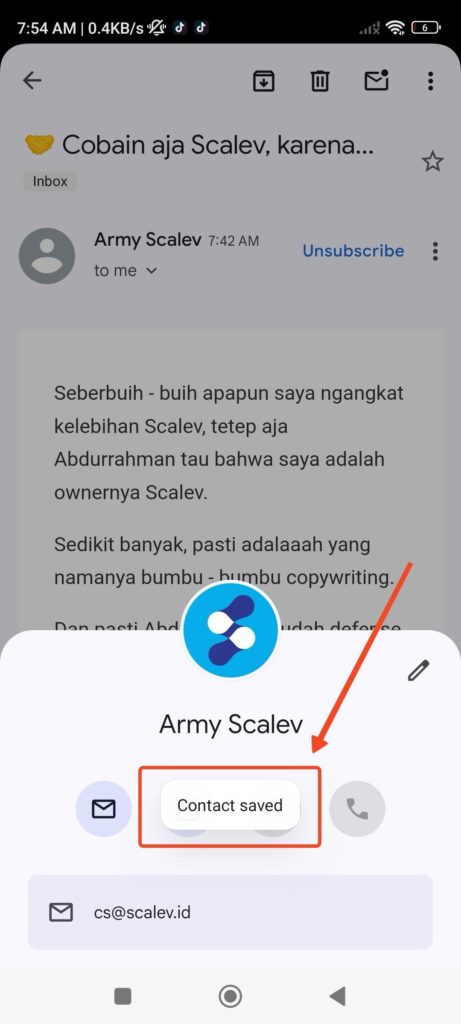 (✓) Done. “cs@scalev.id” has been saved to your Gmail contacts.
⇣
⇣
⇣
“What if the
Army Scalev email __has already ended up in SPAM,what do I do?” 🙄
(Mobile too) Step 1
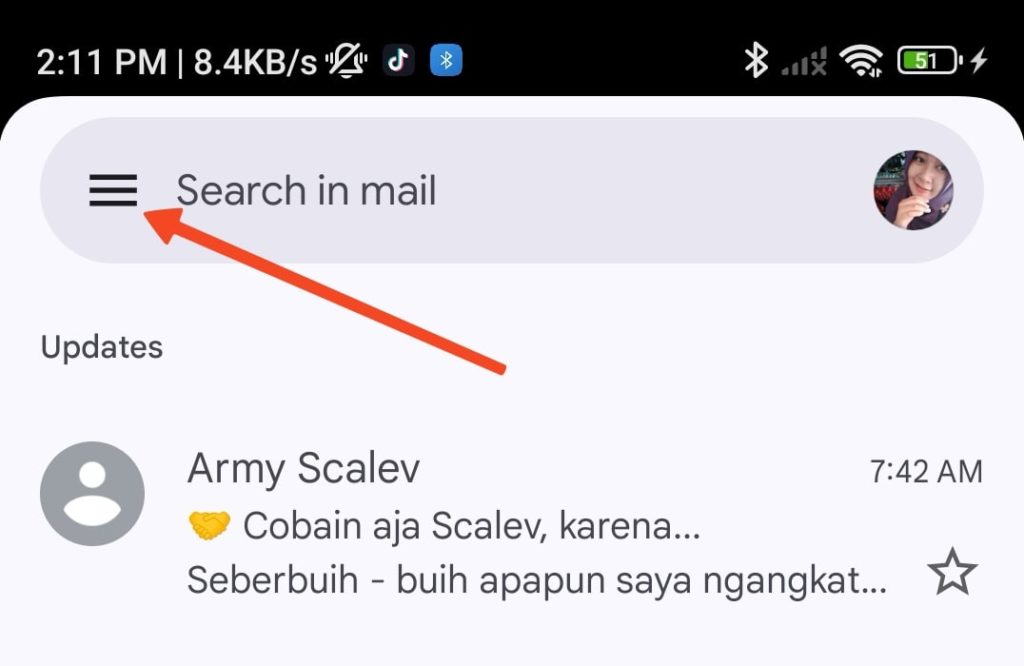
- Open the Gmail app on your phone. Then click the three lines in the top-left corner.
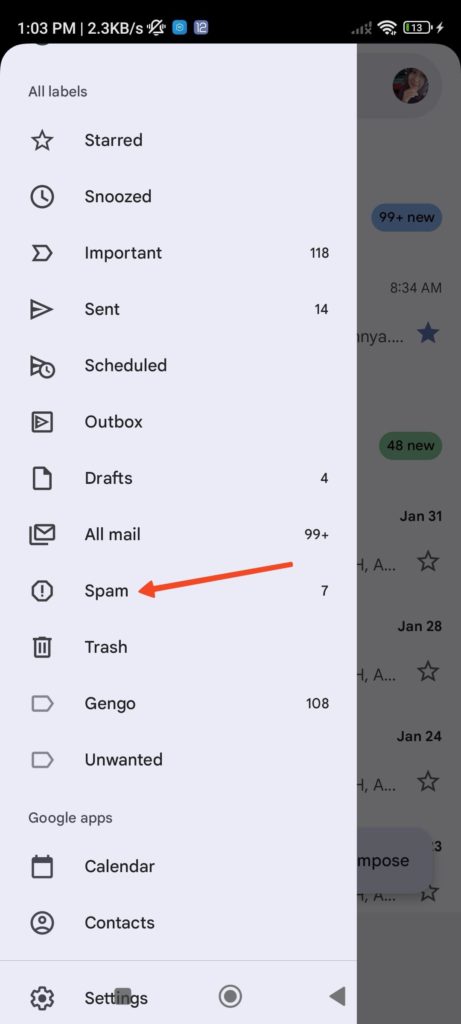
 - Then click the “spam” folder.
Step 2
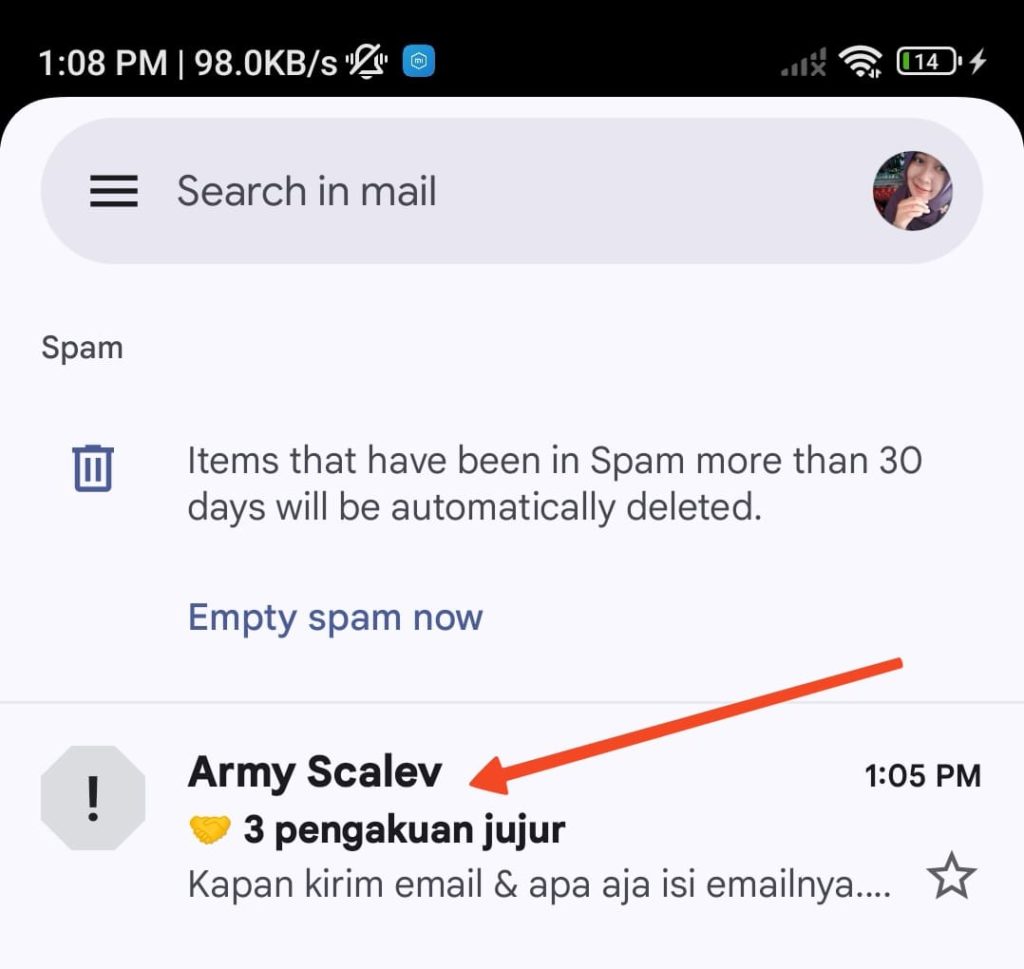 - Click the Army Scalev email that ended up in the spam folder.
 - Then click “Report not spam”.
Note: - “Report not spam” above only clears that one email that ended up in spam. - To make sure future emails don’t land in spam, do the “whitelist” steps described above.
🔷 After whitelisting, Army Scalev emails will land in your inbox (primary). Not spam. 🔷 You won’t miss any content and you’ll minimize having to dig through the spam folder. 🔷 It’s HIGHLY RECOMMENDED to whitelist when the first Army Scalev email arrives in your inbox.