

Documentation Index
Fetch the complete documentation index at: https://docs.scalev.com/llms.txt
Use this file to discover all available pages before exploring further.
- If you find it easier to absorb tutorials in video form, watch the video.
- If you find it easier to absorb tutorials in text form, read the text.
Video Tutorial:
===
Text Tutorial:
Sometimes your sales landing page gets flooded with fake orders. Whether it’s someone casually testing the LP funnel out of curiosity. Whether it’s someone placing an order from people who learned how to earn Dollars in eFBi Pro. Or creating fake orders with no intention of buying. Once or twice might not be a problem, but if it happens repeatedly every day. It’s time to put up a shield! In Scalev, you can reduce spam orders with the Order Shield feature. So that suspected spam orders can be filtered first. How to access: Scalev Dashboard → Stores → Select Store → Then find the Order Shield widget in the right panel.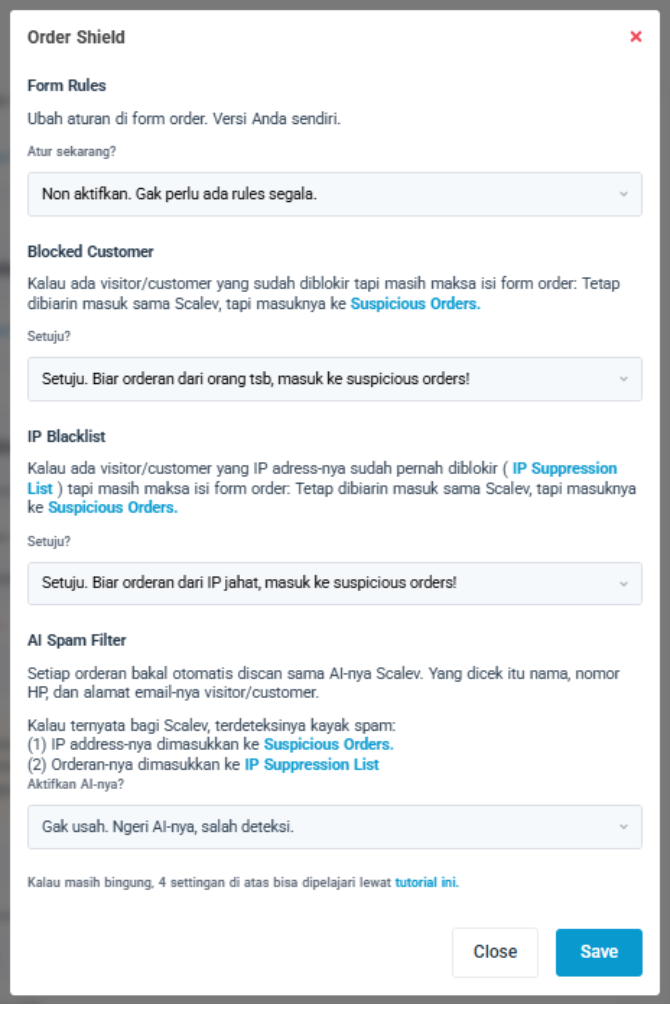 Default Order Shield settings
Inside, there are four main areas:
Default Order Shield settings
Inside, there are four main areas:
- Form Rules
- Blocked People
- Blocked IP
- AI Spam Filter
Description of each feature
1. Form Rules
To reduce “quick fake” orders such as short name spam, unclear addresses, and repeated order attempts. You can change the rules in your checkout form version to counter such activities. Change the selection to “OK. Set it up now.” to activate.Available settings and what happens:
a. Minimum number of characters for Name
Limit the minimum characters for the Name field in the checkout form. For example, set to 3 characters. When a visitor types in the Name field, a warning appears immediately: “Name must be at least 3 characters.” It will disappear automatically once the Name field meets the minimum character count.b. Minimum number of characters for Address
Limit the minimum characters for the Address field in the checkout form. For example, set to 7 characters. If the Address is filled in with less than 7 characters, after submission a message will appear: “Address is too short.” The order cannot be submitted until the Address field meets the minimum character count.c. Maximum number of orders per Phone Number within 1 hour
Limit the number of orders per Phone Number within a 1-hour window. For example, set to 1 order/hour. When there is a second order attempt within 1 hour with the same Phone Number, after submission a message will appear: “Duplicate order.” Note: if the same buyer changes their Phone Number, the count follows the new number.d. Maximum number of orders per IP Address within 1 hour
Limit the number of orders per IP Address within a 1-hour window. For example, set to 1 order/hour. When there is a second order attempt within 1 hour from the same IP, after submission a message will appear: “Duplicate order.” Note: if the same buyer changes their device/network resulting in a different IP, the count follows the new IP.2. Blocked Customer
For visitors/customers who have previously ordered and been marked as spam. You can set how Scalev handles new orders from them. Change the selection to “Agree. Let orders from that person go to suspicious orders!” to activate. When to use:- ON if you want orders from people who have previously spammed to not go directly to the Orders page.
- OFF if you don’t mind all orders passing through to the Orders page.
3. IP Blacklist
For orders from IP addresses that have previously been marked as spam. You can set how Scalev handles new orders from those IPs. Change the selection to “Agree. Let orders from malicious IPs go to suspicious orders!” to activate. You can check the list of IP addresses caught as spam on the “Suppression IP List” page.4. AI Spam Filter
To automatically filter incoming orders, Scalev also has AI to help. Change the selection to “Activate. I want to see Scalev’s AI recipe.” to activate. If enabled, AI will help check the Name, Phone Number, and Email of every incoming order. If it detects unusual patterns (such as random names, unreasonable numbers, nonsensical emails, or typical bot-like repetitive patterns), it will be considered spam. If AI determines it’s spam:- The perpetrator’s IP address is added to the Suppression IP List.
- The order is immediately redirected to Suspicious Orders.
- Form Rules: INACTIVE
- Blocked Customer: ACTIVE
- IP Blacklist: ACTIVE
- AI Spam Filter: INACTIVE
Manual Actions for Prevention
1. Mark IP as Spam
To tell the system what to do when there are future orders from an IP address you have already marked as spam. So that orders from the same IP address will subsequently go to “Suspicious Orders”. How to: Go to Menu Orders → Select Order → find the right panel widget UTM & Others → click “Add to suppression list”2. Mark Customer as Spam
To tell the system what to do when there are future orders from a Customer you have already marked as spam. So that orders from the same Customer will subsequently go to “Suspicious Orders”. How to: Go to Menu Customers → Select Customer → click “Block this customer” ===Key Terms You Must Understand
1. Suspicious Orders
Contains a list of all orders on your Scalev Account that have been marked as spam. All orders that end up here are not blocked — you can monitor and further analyze those orders. Actions you can take on this page:- Mark as Not Spam → if it turns out to not be a fake order. Impact: the order returns to the normal flow and all scripts are immediately triggered (notifications, webhooks, automations, etc.).
- Leave in Suspicious → if it’s proven to be spam.
2. IP Suppression List
Contains a list of IP addresses that have been marked as spam/bot. This list is used by the system to direct incoming new orders to either go to the Menu Orders or directly to Suspicious Orders. ===Tips to Maximize Order Shield in Scalev
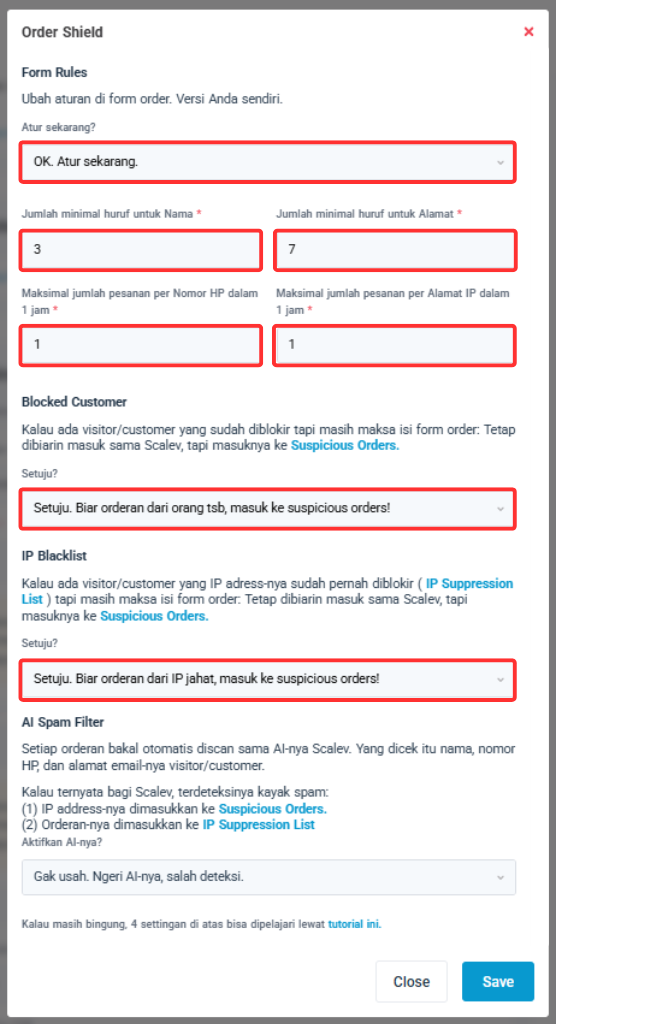 Recommended Order Shield settings
- Manually mark orders that are clearly suspicious with “Add to suppression list”.
- Manually mark customers suspected of spamming with “Block this customer”.
-
Turn on Form Rules with reasonable minimum limits:
- Name set to 3 characters
- Address set to 7 characters
- Phone Number set to 1 order/hour
- IP Address set to 1 order/hour
- Turn on Blocked Customer and IP Blacklist to ACTIVE so orders from problematic People/IPs automatically park in Suspicious Orders.
-
Review Suspicious Orders:
- If legit → Mark as Not Spam (all scripts are immediately called, order returns to normal).
- If doubtful → leave it there.