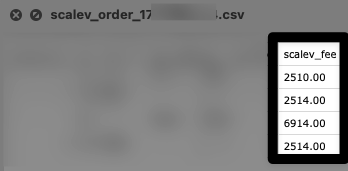
The 4 places are:Documentation Index
Fetch the complete documentation index at: https://docs.scalev.com/llms.txt
Use this file to discover all available pages before exploring further.
- Order list
- Order detail
- Transaction detail
- Downloaded file
1/ Order list:
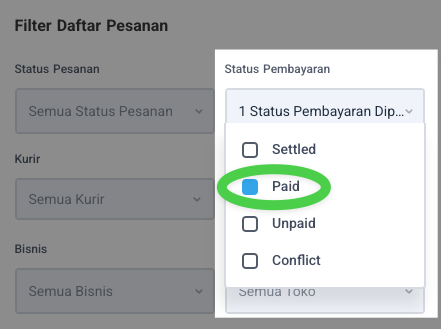
Go to the Orders menu Click this icon to filter orders that are already paid. Configure like this (check “Paid”):
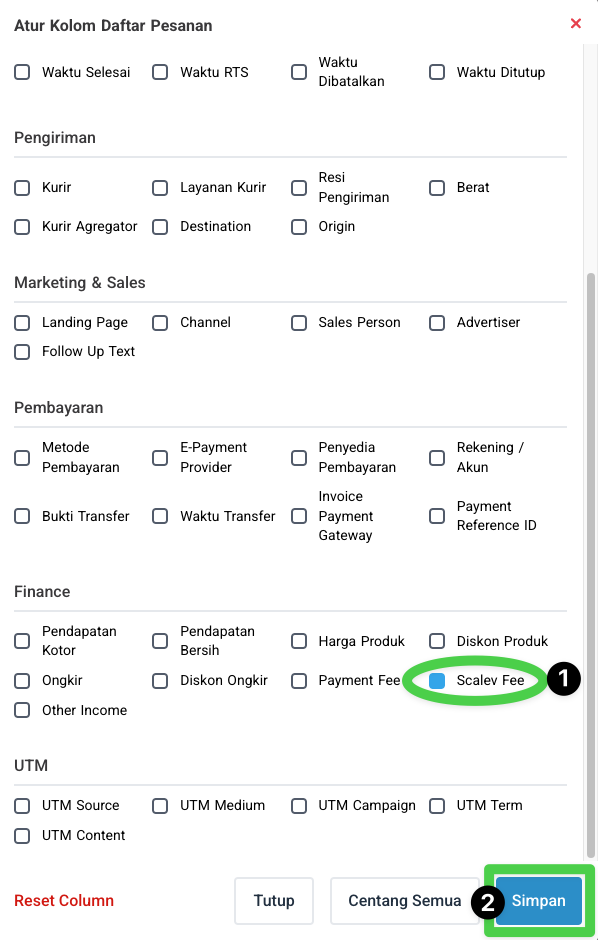
 Then configure the columns to display (we want to show the Scalev Fee column) by clicking this icon:
 Set like this (check “Scalev Fee” & click “Save”):
 ⇣
It will look at least like this:
⇣
It will look at least like this:
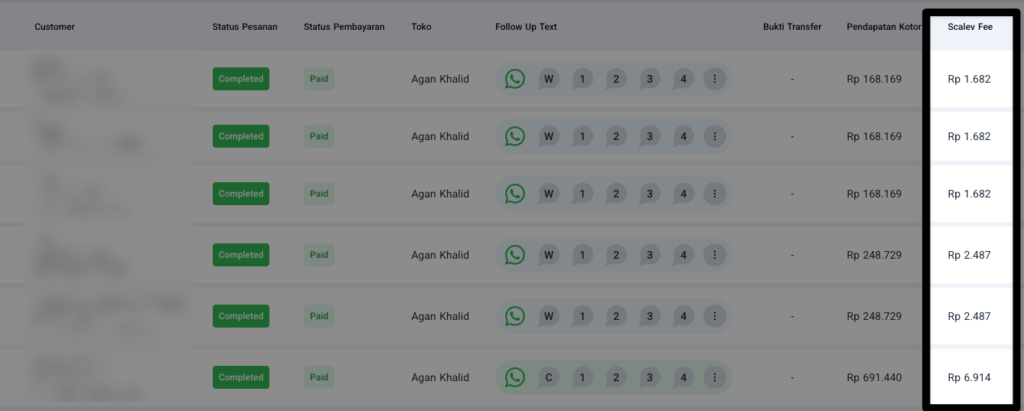 In the example above, using the Basic plan.
So the Scalev Fee is 1%.
===
In the example above, using the Basic plan.
So the Scalev Fee is 1%.
===
2/ Order detail:
When you click one of the orders above, you enter the order detail. And if you scroll down to this section: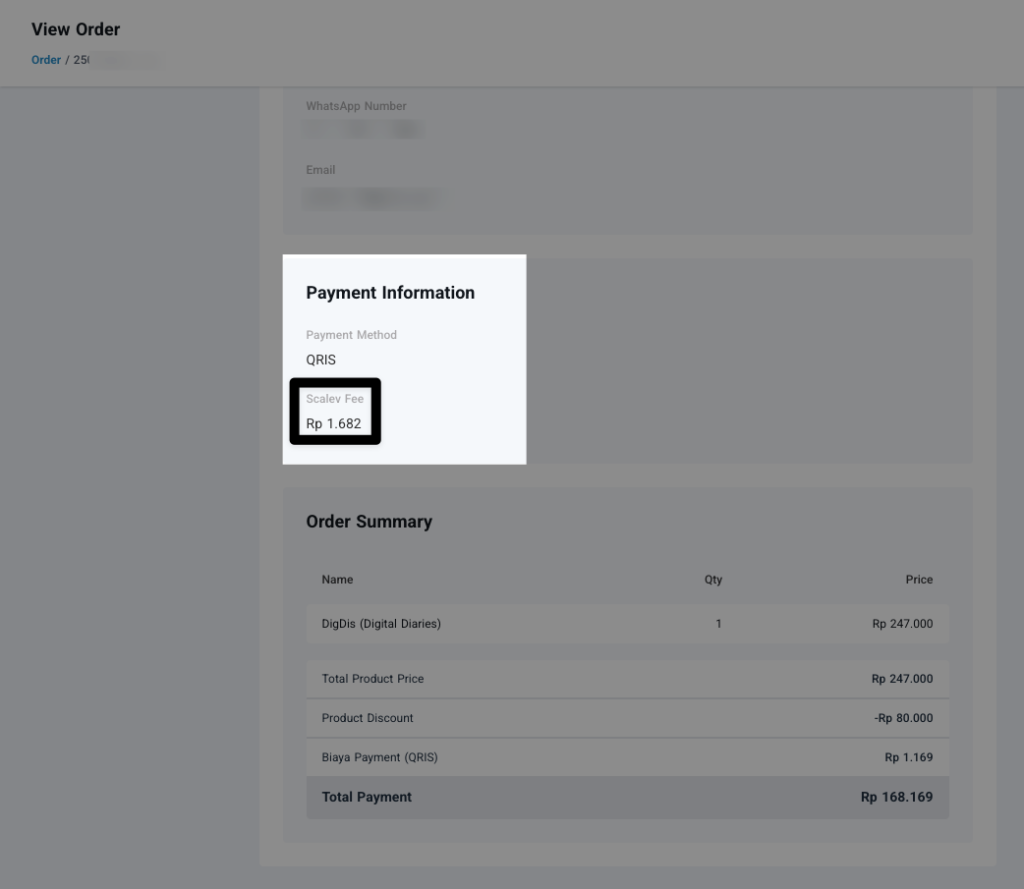 The Scalev Fee amount will appear.
===
The Scalev Fee amount will appear.
===
3/ Transaction detail
Transaction detail is already explained in the previous article. The tutorial is in text & video format. Here: https://tutorial.scalev.id/detailepayment/ ===4/ Downloaded file
This one is for financial purposes. Tax records, etc. Essentially for administration. ⇣ Download orders as usual. In one of the Excel columns, there will be a Scalev Fee column.