

The first thing to check is whether the following fields are:Documentation Index
Fetch the complete documentation index at: https://docs.scalev.com/llms.txt
Use this file to discover all available pages before exploring further.
- Name,
- Phone number,
- Location (district & address),
- Payment Method

Second, is the product recorded in inventory?
 If it’s recorded in inventory as shown above, make sure the stock is configured in the Product → Inventory menu.

Third, is the warehouse set up correctly? Example:
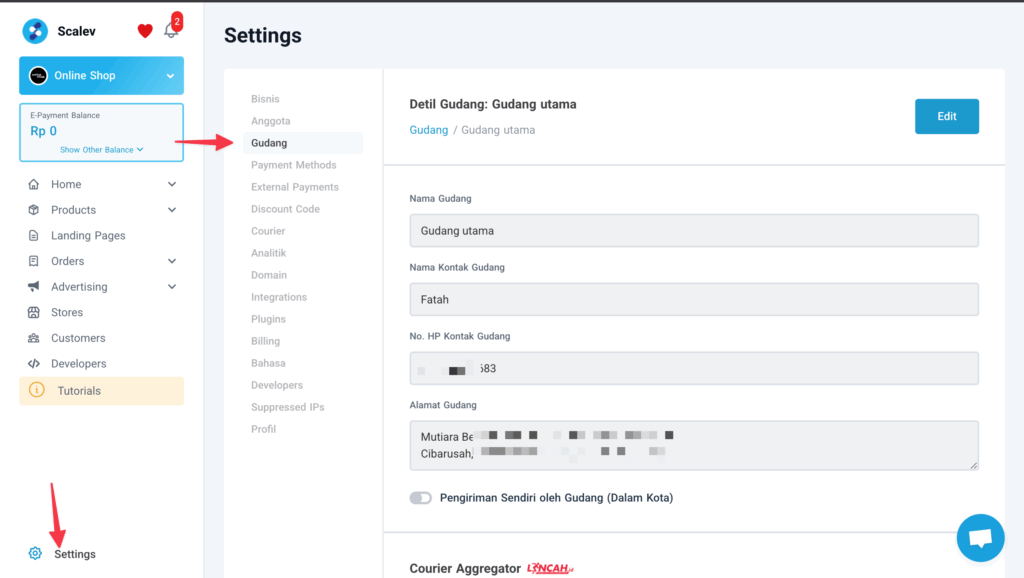 Then make sure that warehouse is configured in the Store menu.
Go to Store → Warehouse → Open
Then make sure that warehouse is configured in the Store menu.
Go to Store → Warehouse → Open
 Then select your warehouse.

- You can select All Warehouses (safest option)
- Or select a specific warehouse where the product is stored.
If you’re using a Courier Aggregator, in addition to the 3 points above, you also need to check these 5 points: Point A, Have you integrated with the Mengantar or Lincah courier aggregator?

Point B, Enable the couriers handled by Mengantar or Lincah in Settings → Courier
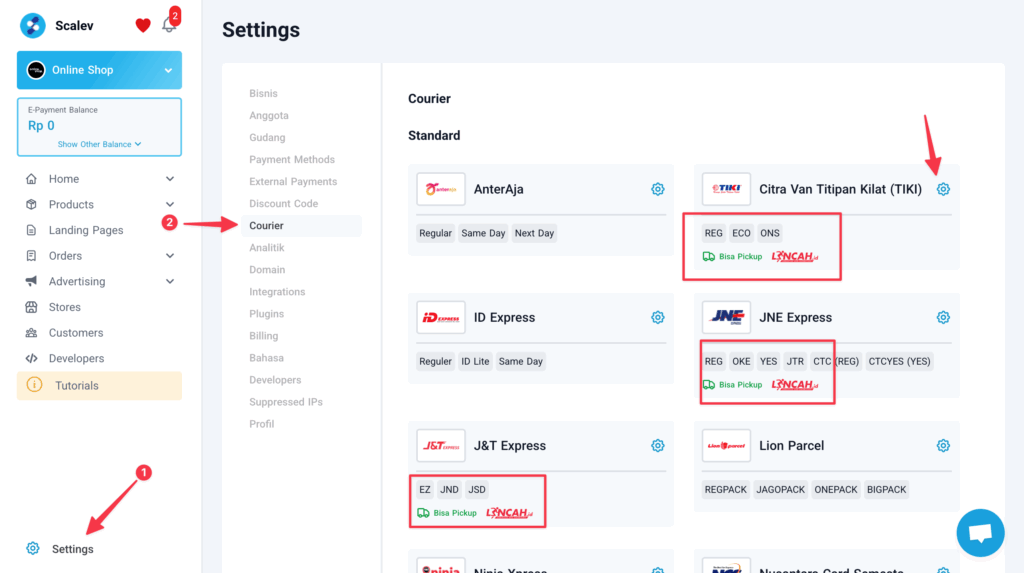 Click the gear ⚙️ icon on the courier to change its aggregator.
Point C, Enable the Mengantar/Lincah courier in Settings → Warehouse
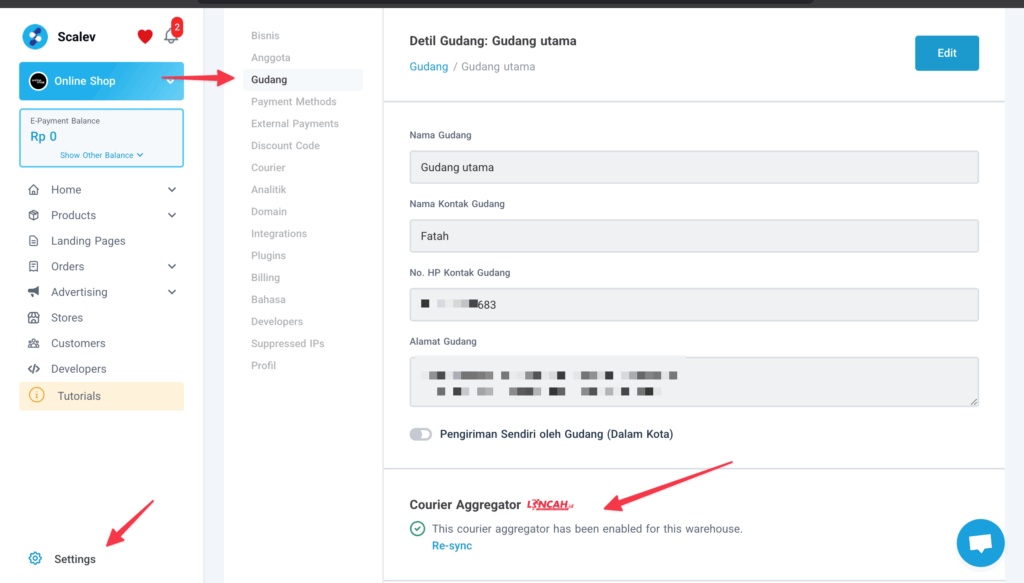
Point D, Enable the Mengantar or Lincah courier in the Store menu.
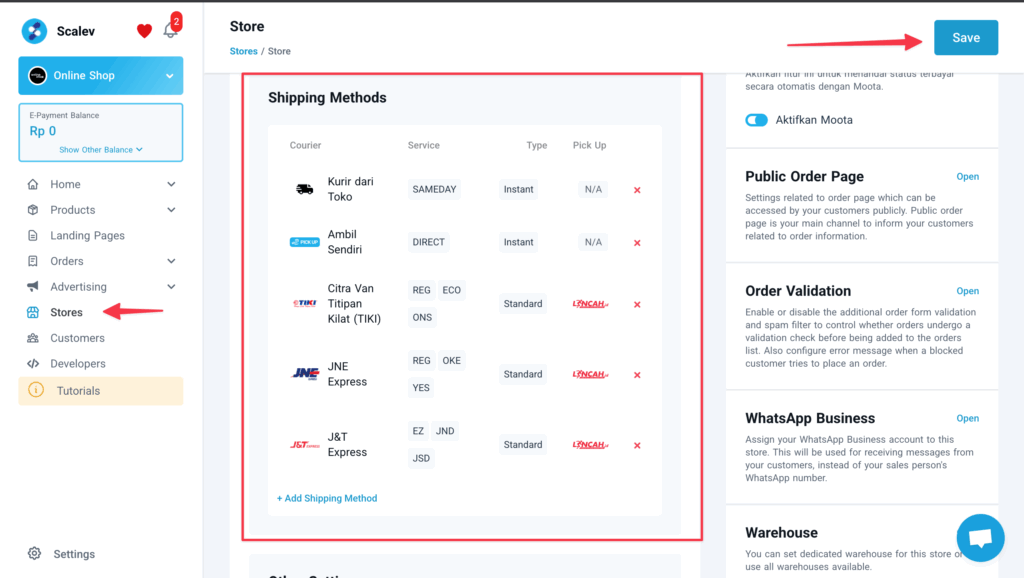
Point E, If you’re using a landing page, enable the couriers handled by Mengantar or Lincah in the order form.
 Once enabled, don’t forget to click Save and Publish.