

To address warnings that appear on the Diagnostics tab in Events Manager, it’s a good idea to first make sure your Meta pixel settings follow Meta’s standard best practices. This applies to both newly created pixels and existing ones.Documentation Index
Fetch the complete documentation index at: https://docs.scalev.com/llms.txt
Use this file to discover all available pages before exploring further.
 Warning message on the pixel Diagnostics tab in Events Manager
You can watch the video above or follow the written instructions below:
If you followed the instructions for creating a new pixel in this article: Tutorial: How to Add a Pixel to Scalev
Then set up the Conversion API (CAPI) in this article: Tutorial: How to Get the Conversion API Access Token (So It Can Be Integrated with Your Scalev Account)
Next, you need to check and ensure that the parameter settings required by the CAPI pixel comply with Meta’s standards.
So that after following these Best Practices, your pixel will no longer display warning errors related to CAPI events in the Diagnostics tab.
Follow these steps:
1. Open the Meta BM front page at https://business.facebook.com
 Open Events Manager in BM
2. Click the Connect Data button to connect an existing pixel
Open Events Manager in BM
2. Click the Connect Data button to connect an existing pixel
 Click Connect Data
3. Select Web then click the Next button
Click Connect Data
3. Select Web then click the Next button
 Select Web
4. Select the name of the active pixel you are using
Select Web
4. Select the name of the active pixel you are using
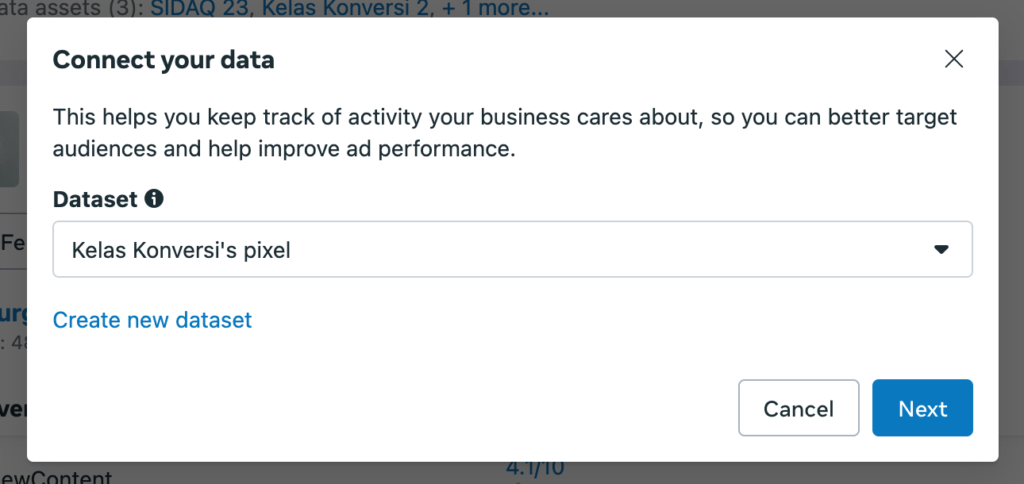 Select active pixel
5. Check “Set up manually” then click the Next button
Select active pixel
5. Check “Set up manually” then click the Next button
 Set up manually
6. Check “Conversions API and Meta Pixel” then click the Next button.
Set up manually
6. Check “Conversions API and Meta Pixel” then click the Next button.
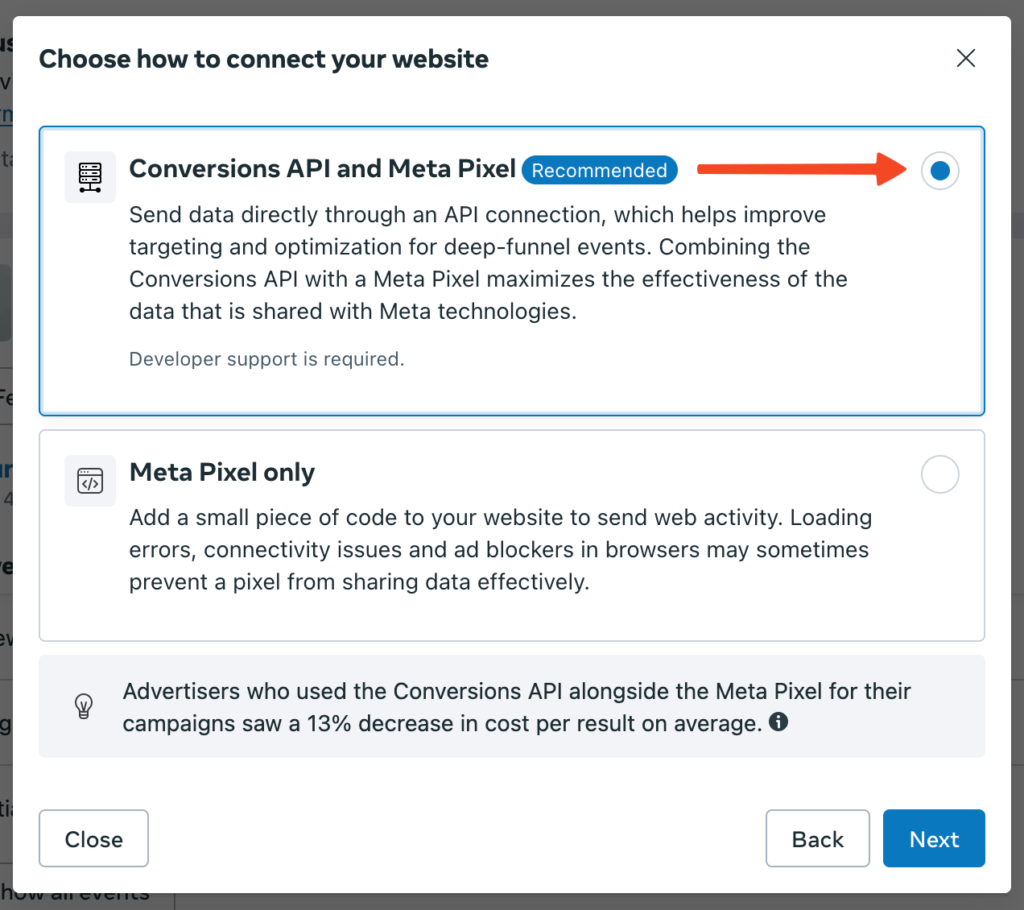 Select the Recommended option
7. Next, click “Start CAPI setup” then click the “Finish” / “Close” button — either is fine
Select the Recommended option
7. Next, click “Start CAPI setup” then click the “Finish” / “Close” button — either is fine
 Click Start CAPI setup to begin
8. Next, there will be a “Manual Implementation Overview” page — click the Continue button to proceed
Click Start CAPI setup to begin
8. Next, there will be a “Manual Implementation Overview” page — click the Continue button to proceed
 Manual Implementation Overview
9. Make sure all active events used on your pixel are checked
Manual Implementation Overview
9. Make sure all active events used on your pixel are checked
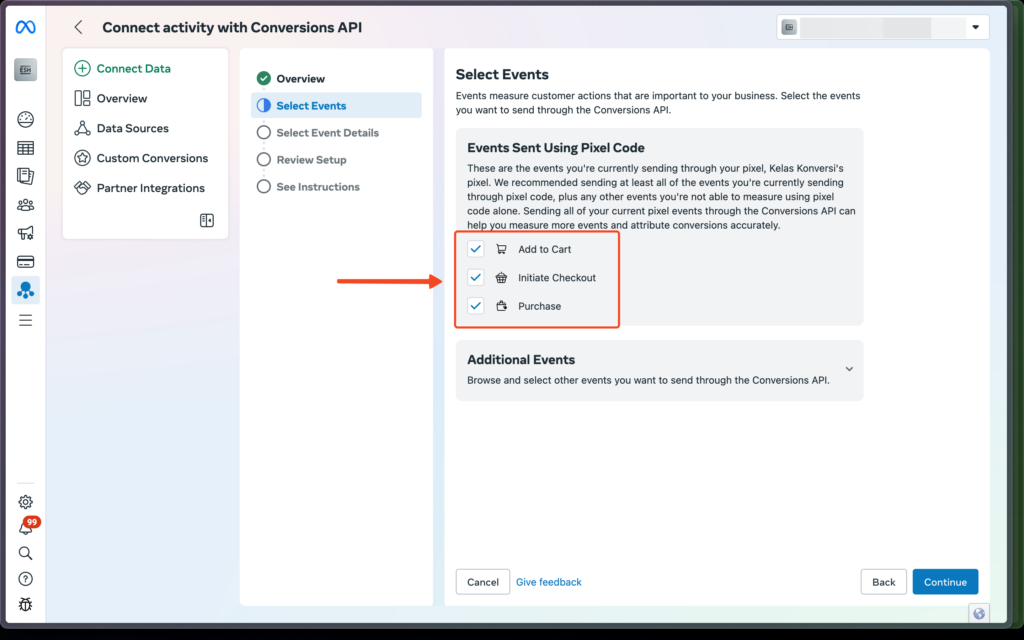 List of active pixel events
10. If any of your pixel events show a warning exclamation mark like this, it must be fixed immediately according to Meta’s standards
List of active pixel events
10. If any of your pixel events show a warning exclamation mark like this, it must be fixed immediately according to Meta’s standards
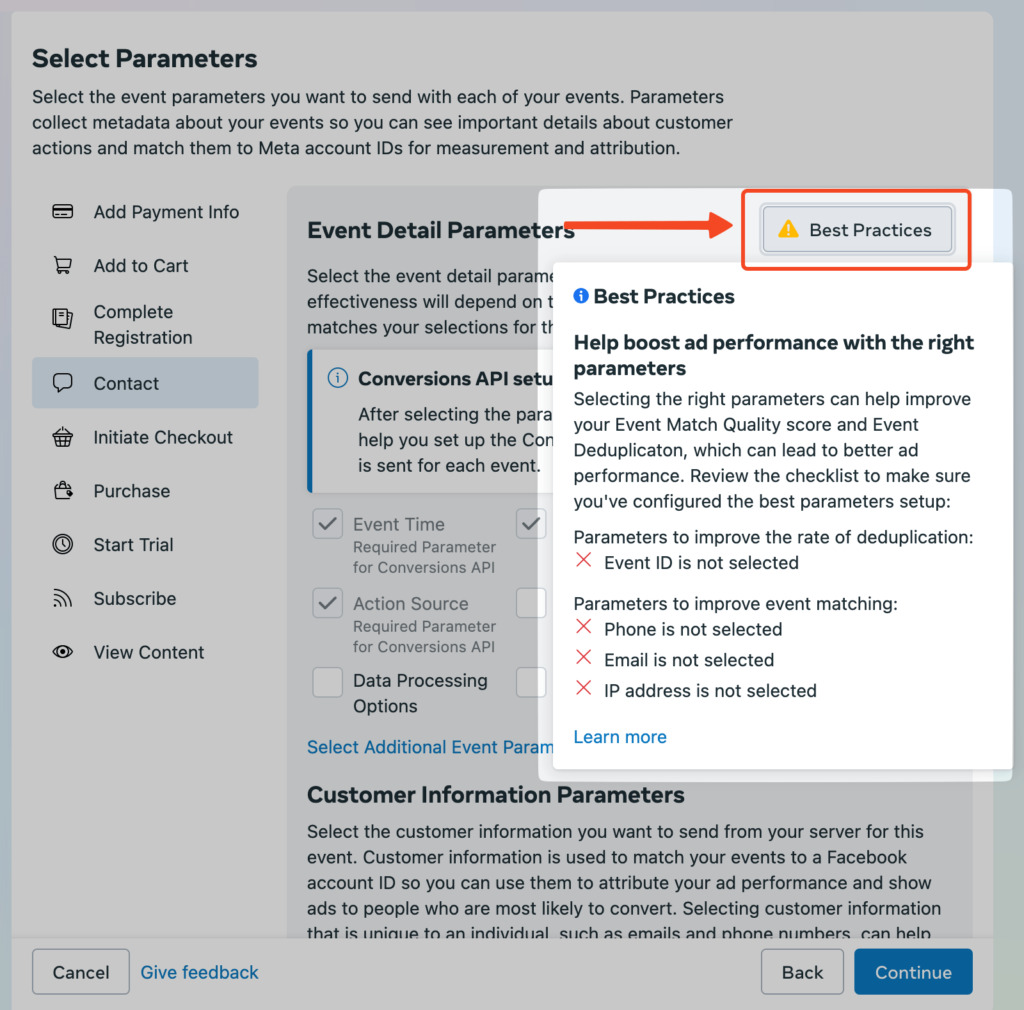 List of parameters that need to be fixed
So the result looks like this:
List of parameters that need to be fixed
So the result looks like this:
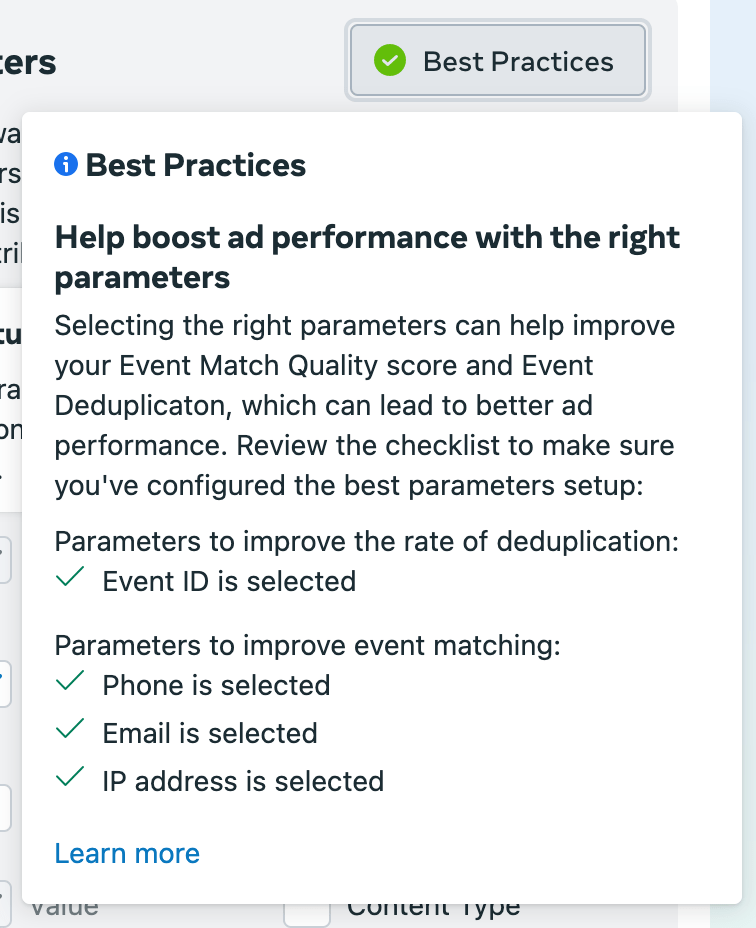 Meta Pixel Best Practices settings
Here is the list of parameters that need to be fixed:
Meta Pixel Best Practices settings
Here is the list of parameters that need to be fixed:
- Event ID
- Phone
- IP address
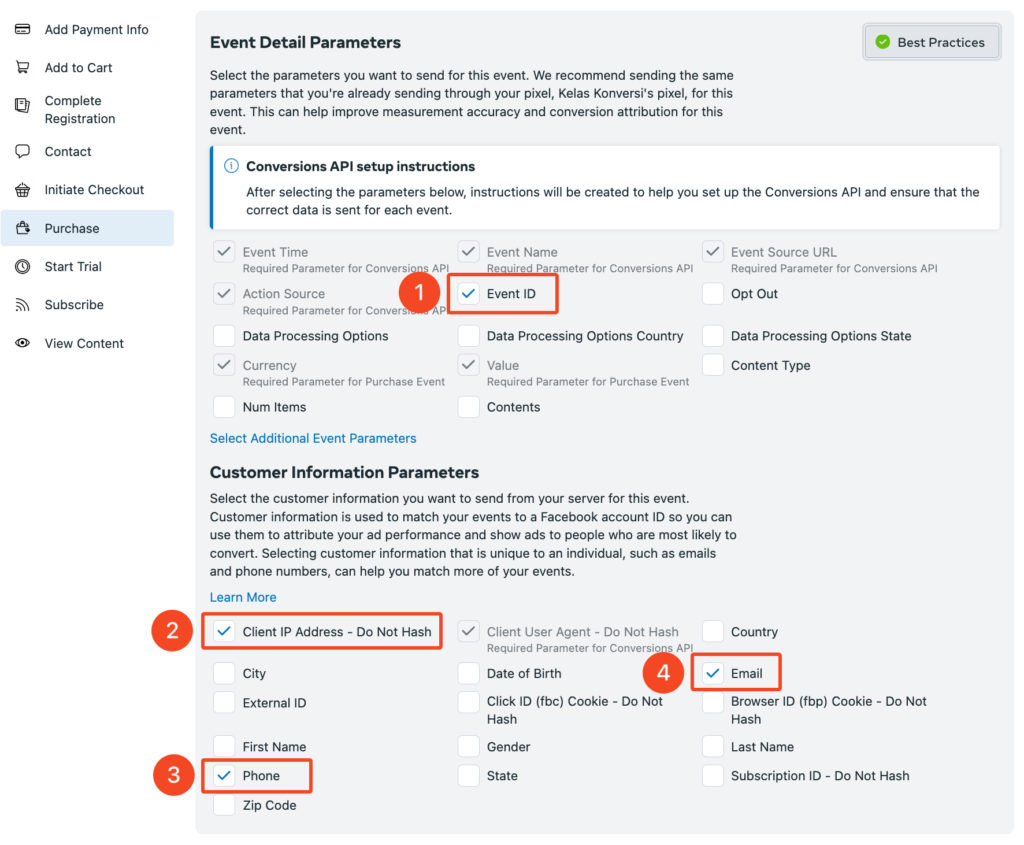 Check these 4 required parameters
Apply the same parameter checks to other events.
Such as ViewContent, AddToCart, InitiateCheckout, etc.
All active events on your pixel.
Then click the Next button.
12. Review Setup, then click the Continue button.
Check these 4 required parameters
Apply the same parameter checks to other events.
Such as ViewContent, AddToCart, InitiateCheckout, etc.
All active events on your pixel.
Then click the Next button.
12. Review Setup, then click the Continue button.
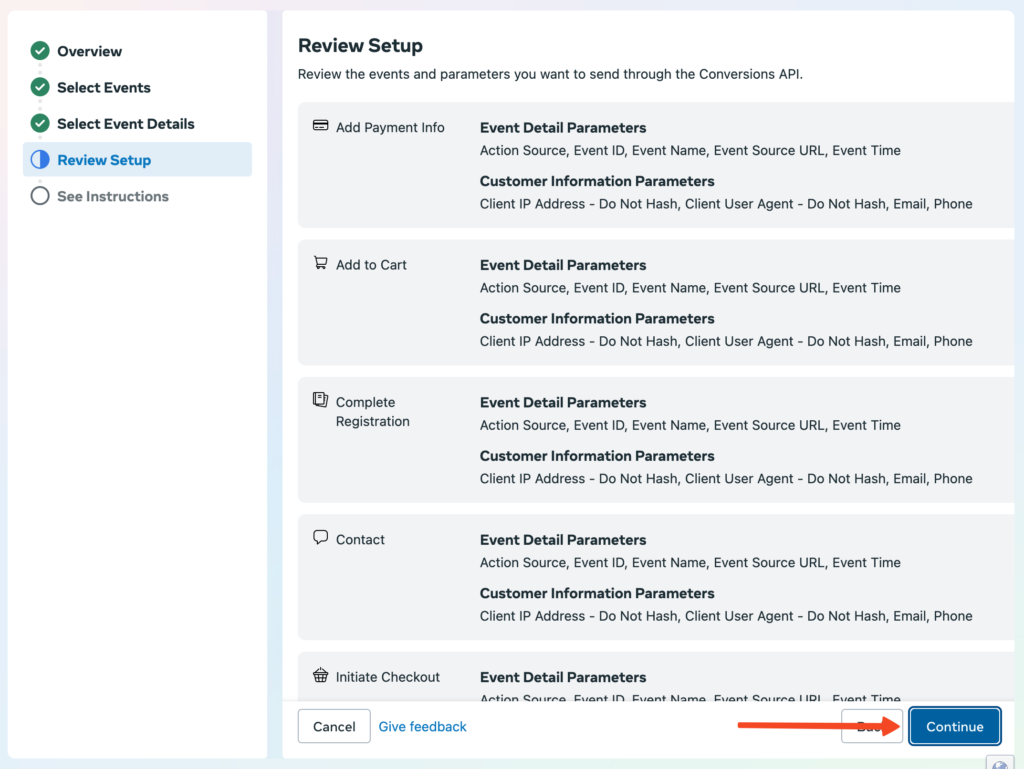 Review setup
13. Click the Continue button
Review setup
13. Click the Continue button
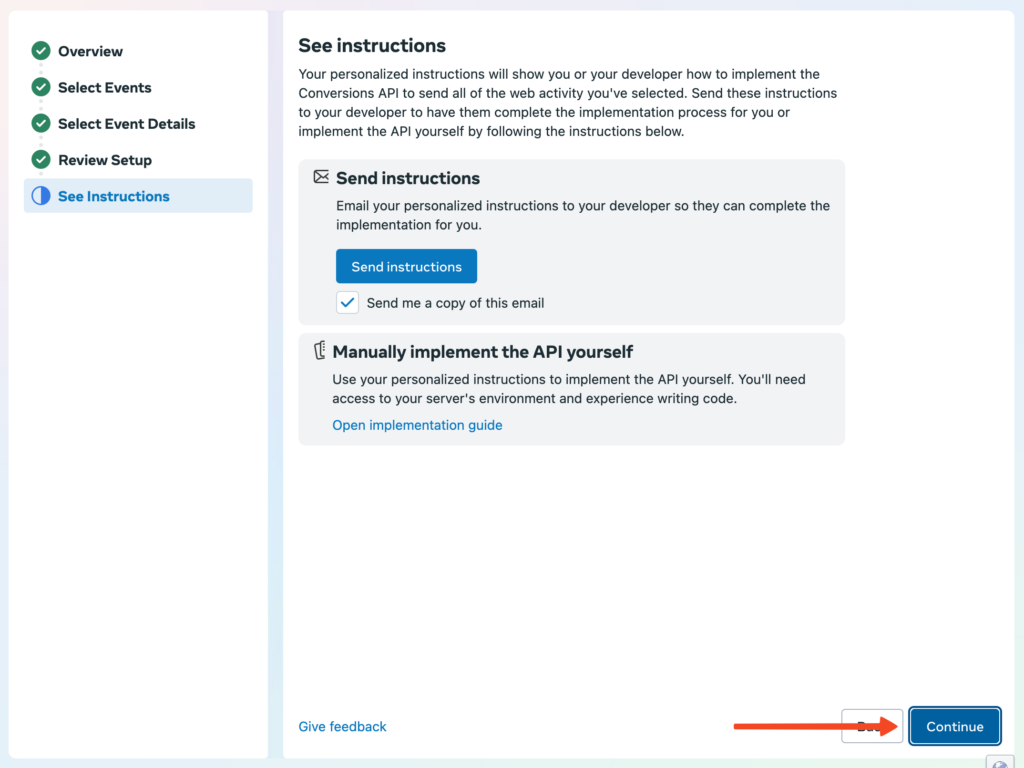 Click the Continue button directly
14. Next, you will be taken to the following page — click the Get Started button.
Click the Continue button directly
14. Next, you will be taken to the following page — click the Get Started button.
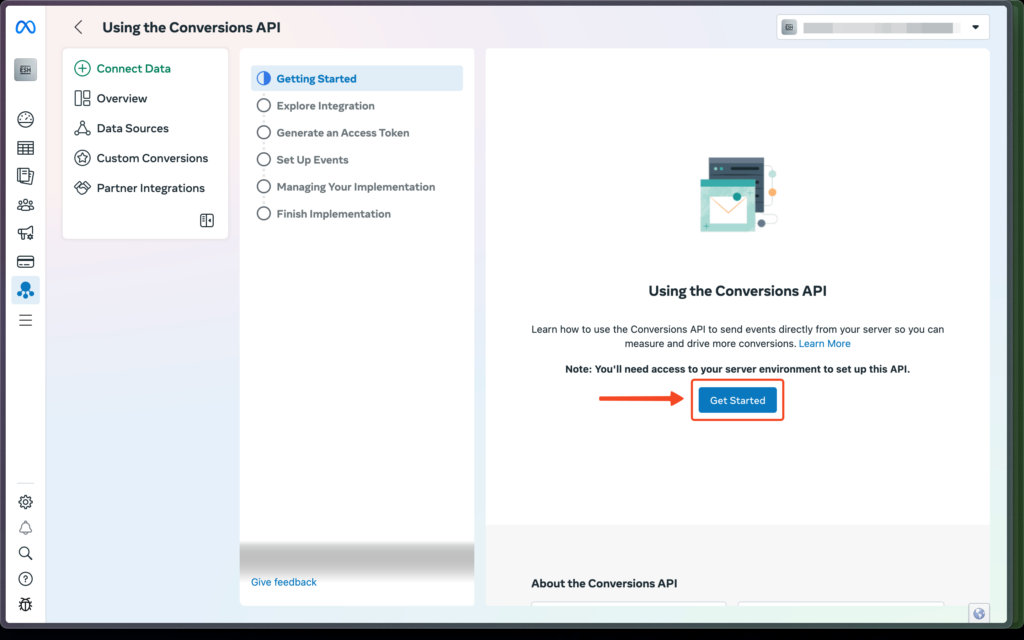 Start by clicking the Get Started button
15. Click Continue until the next step, then click the “Generate an Access Token” button
Start by clicking the Get Started button
15. Click Continue until the next step, then click the “Generate an Access Token” button
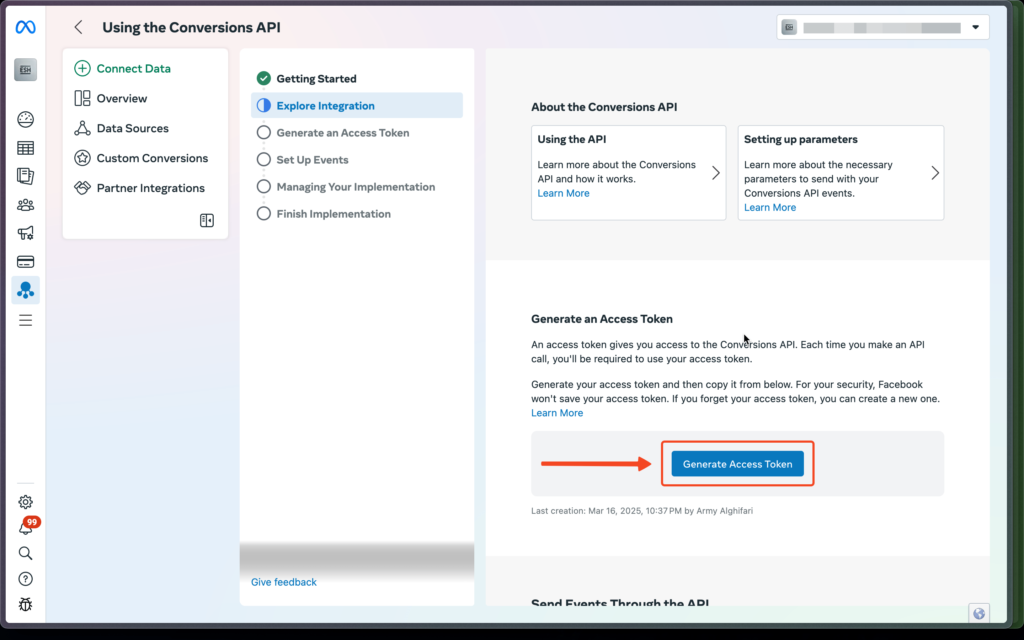 Get the access token code for your pixel
16. After it is generated, copy your code to prepare it for adding to the pixel in Scalev
Get the access token code for your pixel
16. After it is generated, copy your code to prepare it for adding to the pixel in Scalev
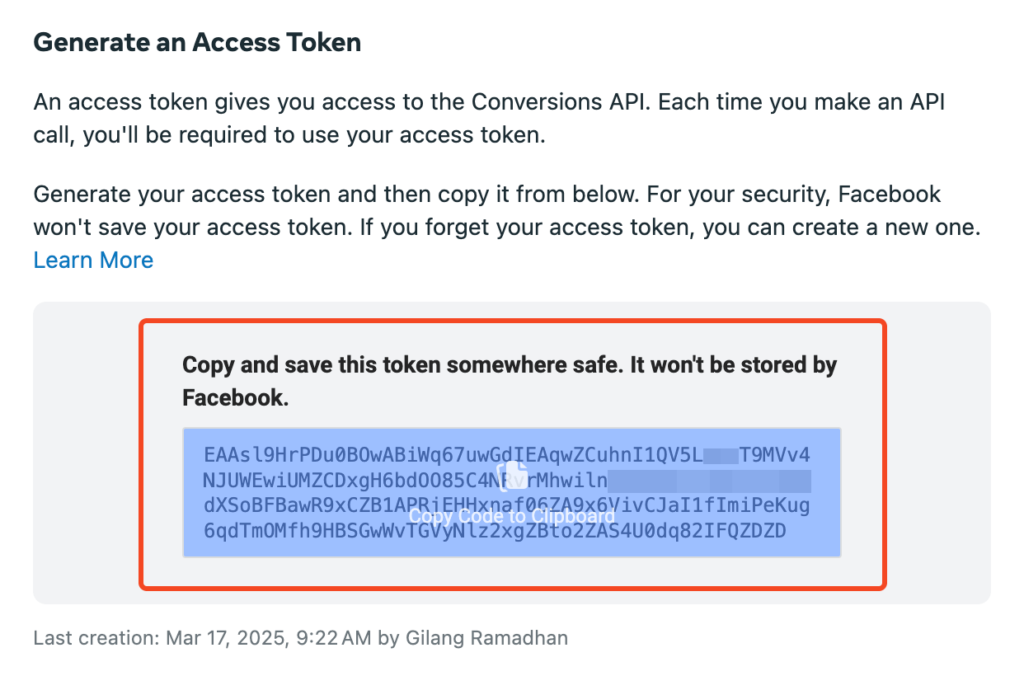 Copy the token code to Scalev
17. Go to the Analytics settings in Scalev at menu Settings > Analytics > Facebook Pixel
Or you can click through this link: https://app.scalev.id/setting/tracking
18. Edit your pixel and paste the token code in the “Conversion API Access Token” field
Copy the token code to Scalev
17. Go to the Analytics settings in Scalev at menu Settings > Analytics > Facebook Pixel
Or you can click through this link: https://app.scalev.id/setting/tracking
18. Edit your pixel and paste the token code in the “Conversion API Access Token” field
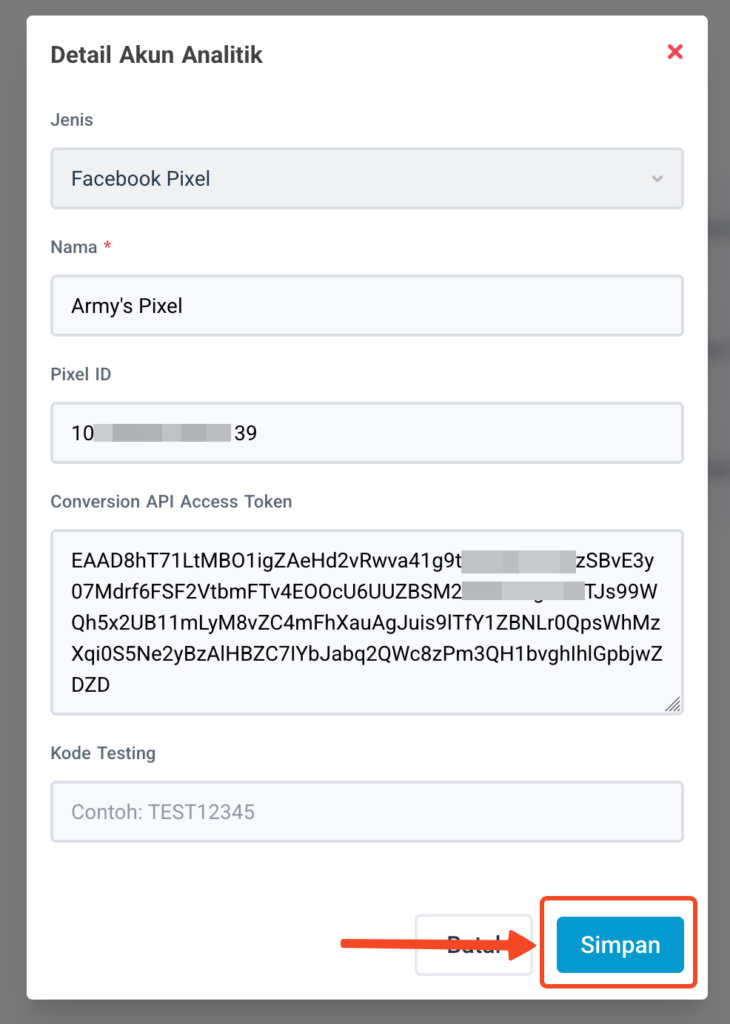 Update the Meta token code in Scalev
19. Click the Save button.
20. Return to Events Manager, click the Finish button to end the process
Update the Meta token code in Scalev
19. Click the Save button.
20. Return to Events Manager, click the Finish button to end the process
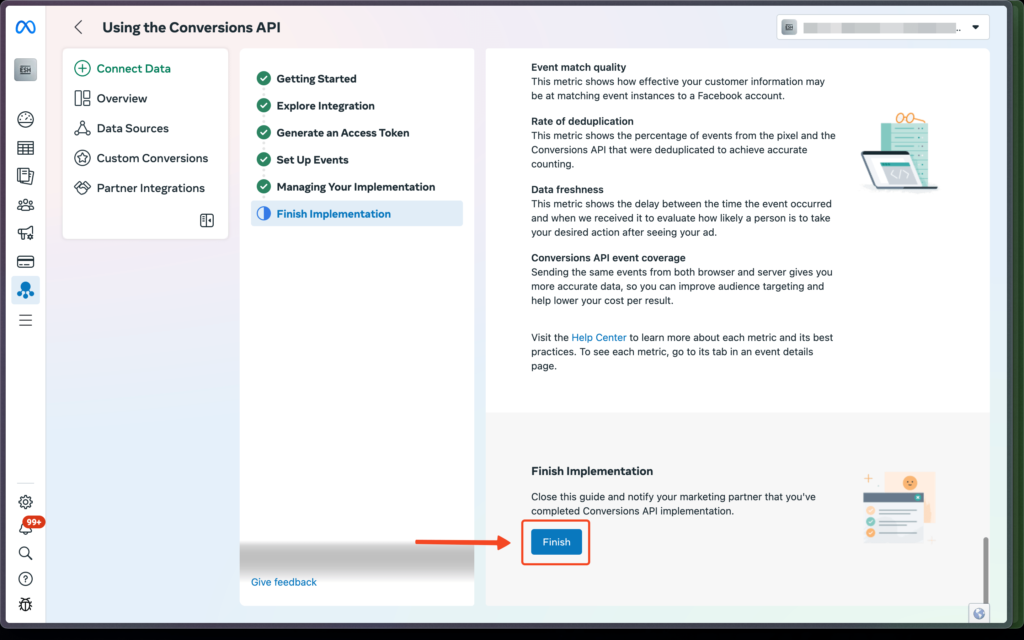 End the implementation process
At this point, the process of implementing the parameters recommended by Meta for your active pixel is complete.
Please wait and periodically check the Diagnostics tab in Events Manager to find out which warning messages appear and which ones no longer appear after applying these best practices.
Good luck!
End the implementation process
At this point, the process of implementing the parameters recommended by Meta for your active pixel is complete.
Please wait and periodically check the Diagnostics tab in Events Manager to find out which warning messages appear and which ones no longer appear after applying these best practices.
Good luck!