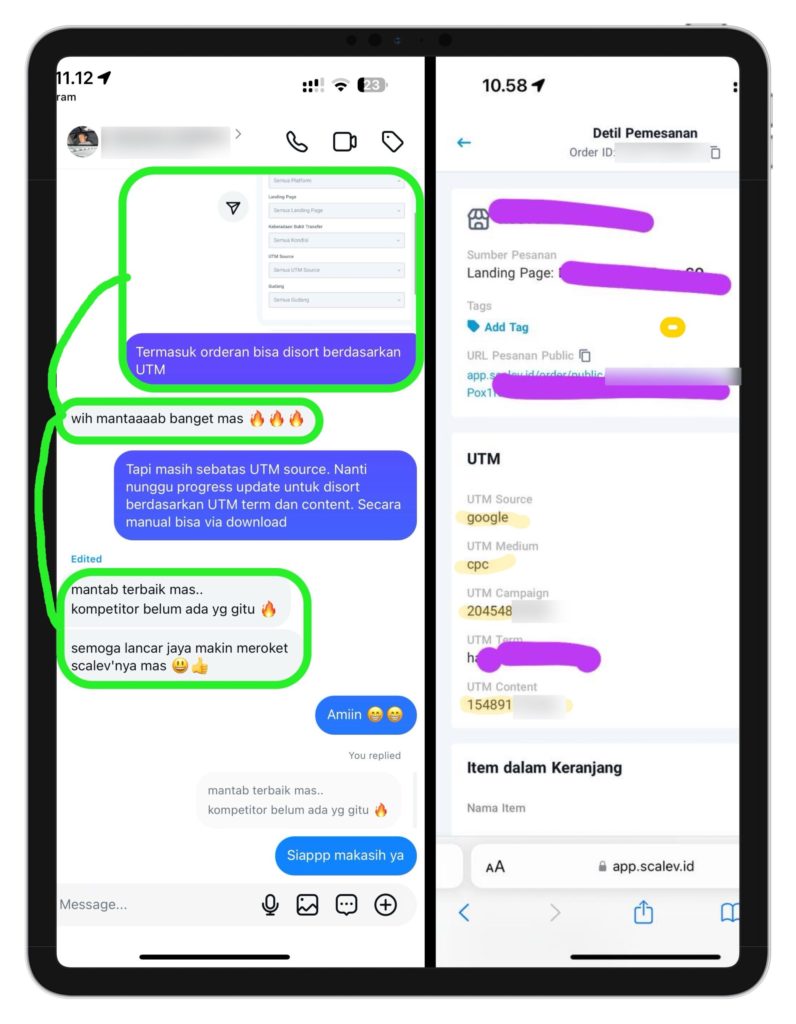
If you’re not running ads: feel free to skip this. I want to talk about something most advertisers don’t know about or use yet. The topic: UTM.Documentation Index
Fetch the complete documentation index at: https://docs.scalev.com/llms.txt
Use this file to discover all available pages before exploring further.
- If you’re using Scalev…
- And you’ve already set up everything that needs to be configured (in this case, Meta Ads)…
- The person who made the ad image wants to see it too.
- The person who wrote the ad copy wants to see it too.
- The person who built the landing page wants to see it too.
Use UTM!
- You’ll be able to see which ads generated purchases directly in each order’s details.
- So the person who made the ad copy, ad image, ad video, landing page, or even the CS — they can all see it too.
- Even the advertiser can check directly from their phone (via Scalev). No need to open the Ads Manager dashboard at all.
How to Set Up UTM
You can Google it. But since most of the guides are in English… Here’s the simplest way (for those running Meta Ads): Step #1:- In your running ad…
- In the website URL field…
- AFTER the URL of your landing page…
-
Add this text:
?utm_source=FacebookAds&utm_medium={{placement}}&utm_campaign={{campaign.name}}&utm_content={{ad.name}}
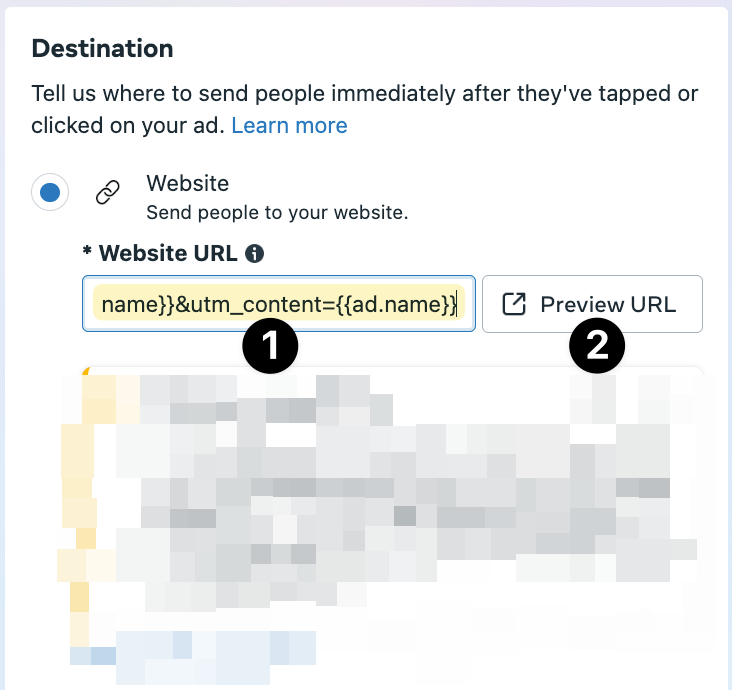 Example:
- The original URL is: https://kelaskonversi.com/kk-premium/
-
After adding the UTM attributes, it becomes:
https://kelaskonversi.com/kk-premium/?utm_source=FacebookAds&utm_medium={{placement}}&utm_campaign={{campaign.name}}&utm_content={{ad.name}}
- Click “Preview URL”.
- If it still leads to the intended landing page: you’re good. The ad is ready to publish ✅
- If it redirects to an error page, something went wrong in step #1.
What Happens Next
For every order generated by your ad… In the UTM section… you’ll see the details. The details include: which campaign, which placement, and which ad.