

Open Payment Method Settings
Scroll down to the Payment Method section, then click Select Payment Method.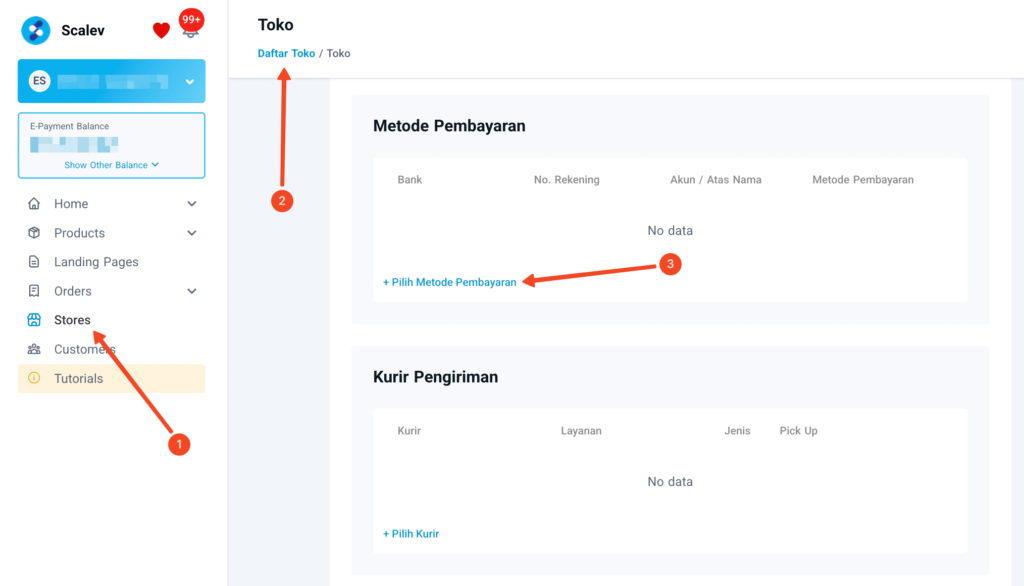
Enable ePayment
A dialog box will appear as shown below.
- Click the dropdown and select Invoice
- Check the option “Enable ALL E-Payment Methods”
- Click the Save button inside the dialog box
Preview
The following is an example of how ePayment options appear on the Scalev order form: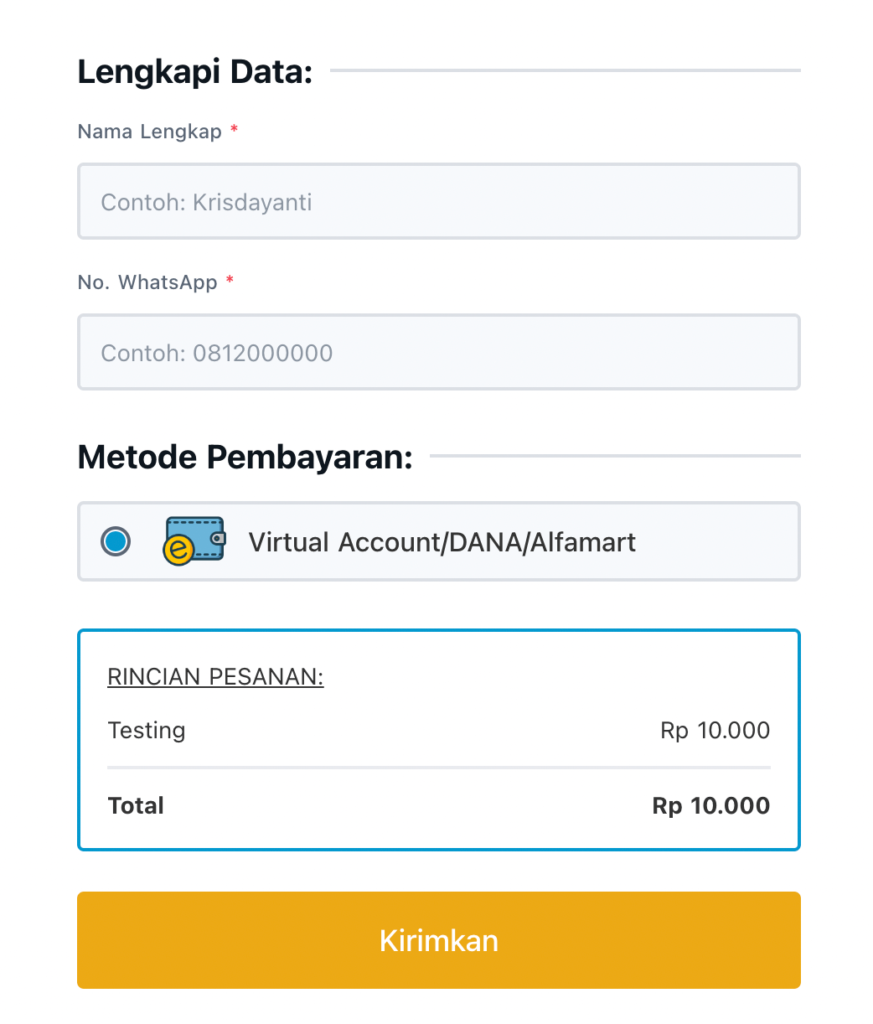 The following page is displayed when a buyer is directed to the available ePayment options:
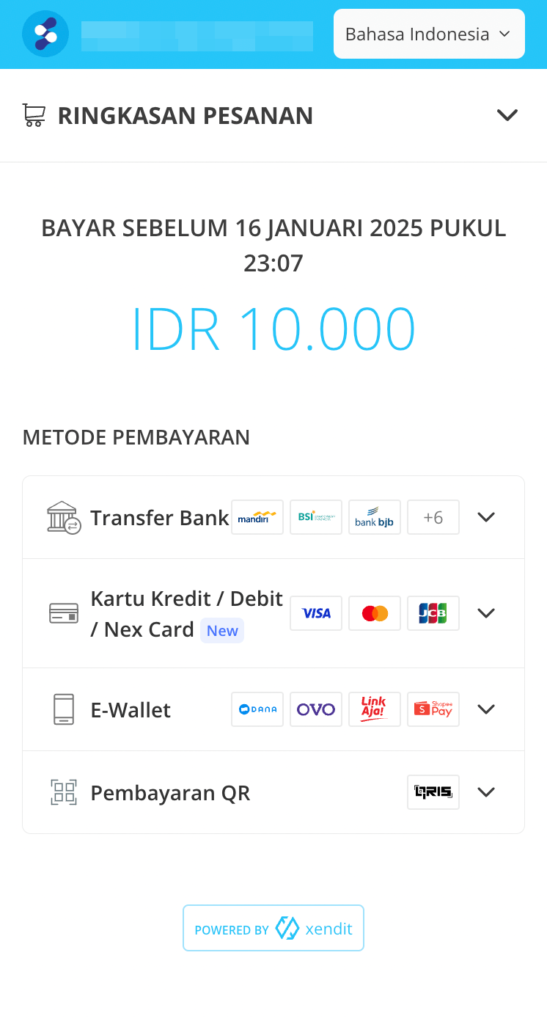
Buyers are free to select any ePayment method that best suits their preference.